Install the official plugin from the ChatGPT store, approve the connection, and start your first chat — no developer mode and no ZIP skill.
About a minute and you’re ready for Zuzli
Part 1 · Install the plugin
Tap the button, sign in to ChatGPT if needed, and install the Zuzli plugin.
Opens the official Zuzli plugin page in the ChatGPT store
Part 2 · Approve the Zuzli connection
Right after install, ChatGPT asks you to sign in to Zuzli and approve access. It’s the same consent flow as the manual setup — then trips save straight into the app.
- 1
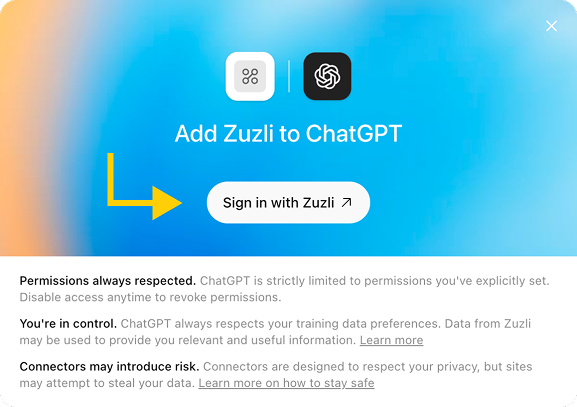
Sign in to your Zuzli account
A Zuzli window opens. Click Sign in with Zuzli and finish signing in if asked.
- 2
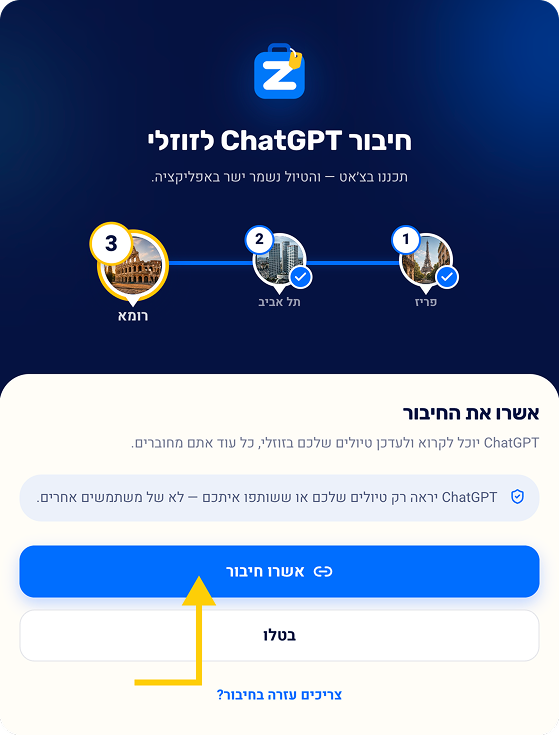
Approve the connection
On the Zuzli consent screen, tap Approve connection. The plugin is ready after that.
Part 3 · Your first chat
- 1
Open a new ChatGPT chat
A regular chat is enough — no Work mode, and no separate skill @.
- 2
Attach Zuzli to the prompt
Start the message by typing:
Then pick the plugin from the list that appears.
- 3
Plan the trip
Right after @Zuzli, write your request. For example:
- 4
You’re ready for Zuzli!
Zuzli will ask the right questions and build a full trip straight into the app. Keep going in the same chat anytime to ask about trips and change them live.
Copy @Zuzli and the prompt from the steps above, then paste them into the chat
Connecting from the ChatGPT phone app? Short visual guide.
Need the older manual path (developer mode and ZIP skill)? Adding the Zuzli plugin to ChatGPT manually.
Contact us
For questions, technical issues, privacy requests or account deletion, email us directly: